
-
 By: Janina Criador
- IT Guides
- Last Updated On: November 24, 2026
- Comments 0
- ⏱️8 min read

Black Friday for Your Microsoft 365 Budget: How to Audit “Ghost Licenses” and Cut Redundant Security Tools
TL;DR: Microsoft 365 License & Security Audit
- Find ghost licenses: Identify users with no sign-in activity for 90+ days, departed contractors, dormant service accounts, and unassigned E3/E5 licenses.
- Quantify the waste: 50 unused Microsoft 365 E5 licenses at $60/user/month equals $36,000 in annual waste before discounts or taxes.
- Reclaim and right-size: Remove licenses from confirmed leavers, eliminate unjustified license reserves, and evaluate E5-to-E3 downgrades where premium features are unused.
- Preserve necessary data: Convert eligible departed-user mailboxes to shared mailboxes, which generally do not require a license up to 50 GB.
- Cut duplicate security spend: Review third-party MDM, EDR/AV, identity, and MFA tools against Microsoft Intune, Defender for Endpoint, and Entra ID to avoid paying twice for the same capability.
Every November, retailers slash prices and shoppers hunt for waste. Your Microsoft 365 tenant deserves the same treatment. Unlike a doorbuster deal, the savings here are already yours. You are simply paying for them every month.
With year-end budgets closing and renewals approaching, now is the best time to reduce Microsoft 365 licensing costs without cutting a single feature your people use.



What Are “Ghost Licenses”?
Ghost licenses are Microsoft 365 subscriptions you pay for but nobody benefits from. They fall into three groups:
- Inactive accounts: users with no sign-in for more than 90 days.
- Unlicensed or over-licensed service accounts: shared, test, and automation accounts holding full user licenses they do not need.
- Redundant third-party security add-ons: tools that duplicate capabilities already included in Microsoft E5 (or Microsoft G5).
Audit them before renewal, reclaim or downgrade what is not needed, and consolidate overlapping security spend.
Quick Reference: Finding Ghost Licenses in the Microsoft Entra Admin Center
Use Microsoft Entra ID and the Microsoft 365 admin center to locate inactive users and license assignments:
- Sign in to the Microsoft Entra admin center (entra.microsoft.com) with at least Reports Reader or User Administrator rights.
- Go to Identity > Users > All users and add the Last successful sign-in column. Sort ascending to surface dormant accounts. (Sign-in activity data requires Entra ID P1 or higher, which is included in E3/E5.)
- Go to Identity > Monitoring & Health > Sign-in logs and filter by date range to confirm activity for suspect accounts, including non-interactive sign-ins.
- Go to Identity > Billing > Licenses > All products to see assigned versus purchased seats per SKU.
- In the Microsoft 365 admin center, open Billing > Licenses to see unassigned seats, and Reports > Usage to see which assigned features are never touched.
Microsoft documents this exact approach for identifying inactive accounts using the last successful sign-in date in Entra ID. It notes that a built-in inactive-user report is not available, but last sign-in data can be filtered in the user list or retrieved through Microsoft Graph.
Ready to Secure & Optimize Your Identity Architecture?
Streamline access management, enforce Zero Trust policies, and protect your cloud estate with native Microsoft Entra ID capabilities.
The Hidden Cost of Ghost Licenses: A Financial Reality Check
Ghost licenses rarely come from one big mistake. They accumulate quietly, the way subscriptions do on a personal credit card.
How license creep happens:
- Offboarding gaps. HR closes the employee’s record, but the IT ticket stalls. The account and its license live on.
- Contractor churn. Short engagements end, and nobody owns the cleanup.
- E5 over-provisioning. To “be safe,” admins assign E5 to everyone, even though many users only need E3 capabilities.
- Annual true-up behavior. Commitments are sized for peak headcount, then never right-sized.
The Math: Sample Enterprise ROI Breakdown
Consider a mid-market company with 50 ghost E5 licenses—departed employees, dormant contractors, or inactive accounts still holding premium licenses.
| Item | Calculation | Annual waste |
|---|---|---|
| Ghost E5 licenses | 50 users | — |
| E5 list price | $68.4/user/month | — |
| Monthly waste | 50 × $68.4 | $3,420 |
| Annual waste | $3,420 × 12 | $41,040 |
That is $41,040 per year before partner discounts, taxes, currency movements, or additional security-tool overlap. At the prior $57 E5 price point, the same 50 licenses would waste $34,200 annually. Either way, the issue is material enough to belong to the CFO’s renewal agenda.
The larger opportunity is often license optimization, not just deletion. A user who needs Microsoft E3-level productivity but not E5 security, compliance, analytics, or voice capabilities may be a downgrade candidate—provided security and compliance requirements are validated first.
Step-by-Step Audit Guide: Microsoft 365 License Optimization for IT Teams
Step 1: Identify Inactive Users (No Sign-In for 90+ Days)
- In Entra admin center > Users > All users, show Last successful sign-in and export the list to CSV.
- Cross-check with the Microsoft 365 admin center > Reports > Usage (Active users report), which shows last activity per workload.
- Filter for accounts with no sign-in in 90 days. Exclude known exceptions: parental leave, seasonal staff, and break-glass emergency accounts.
- Send the list to HR and department heads for confirmation. Never remove licenses from telemetry alone.
Step 2: Audit Unassigned Licenses Sitting in Reserve
- Open Billing > Licenses and compare purchased vs. assigned for every SKU.
- Any unassigned seats are money spent on shelf inventory. Note them separately from inactive accounts.
- Check group-based licensing assignments. Stale security groups often keep licenses attached to people who no longer belong.
Step 3: Reclaim and Downgrade
- Remove licenses from confirmed leavers after data retention requirements are met.
- Convert departed-user mailboxes to Shared Mailboxes to retain data without a recurring license fee. In general, shared mailboxes under 50 GB need no license. If you need an archive, litigation hold, or more than 50 GB, an Exchange Online Plan 2 license is required, so confirm the compliance requirement first.
- Downgrade E5 to E3 for users who do not use Defender, Purview, or Power BI Pro features. Use the usage reports to prove it.
- Right-size service accounts. Most automation accounts need no license at all, or only a minimal one.
- Reduce seat counts at renewal. Unassigned seats can usually be reduced at renewal, so timing matters. Check the terms of your agreement.
Document the decision for every account: keep, reclaim, downgrade, convert, or delete. That record becomes the business case for your renewal negotiation.
Run this 15-minute license check before your next purchase. Book a complimentary Black Friday M365 License & Tool Consolidation Audit with ECF Data.
The Tool Consolidation Playbook: Stop Paying Twice for Security
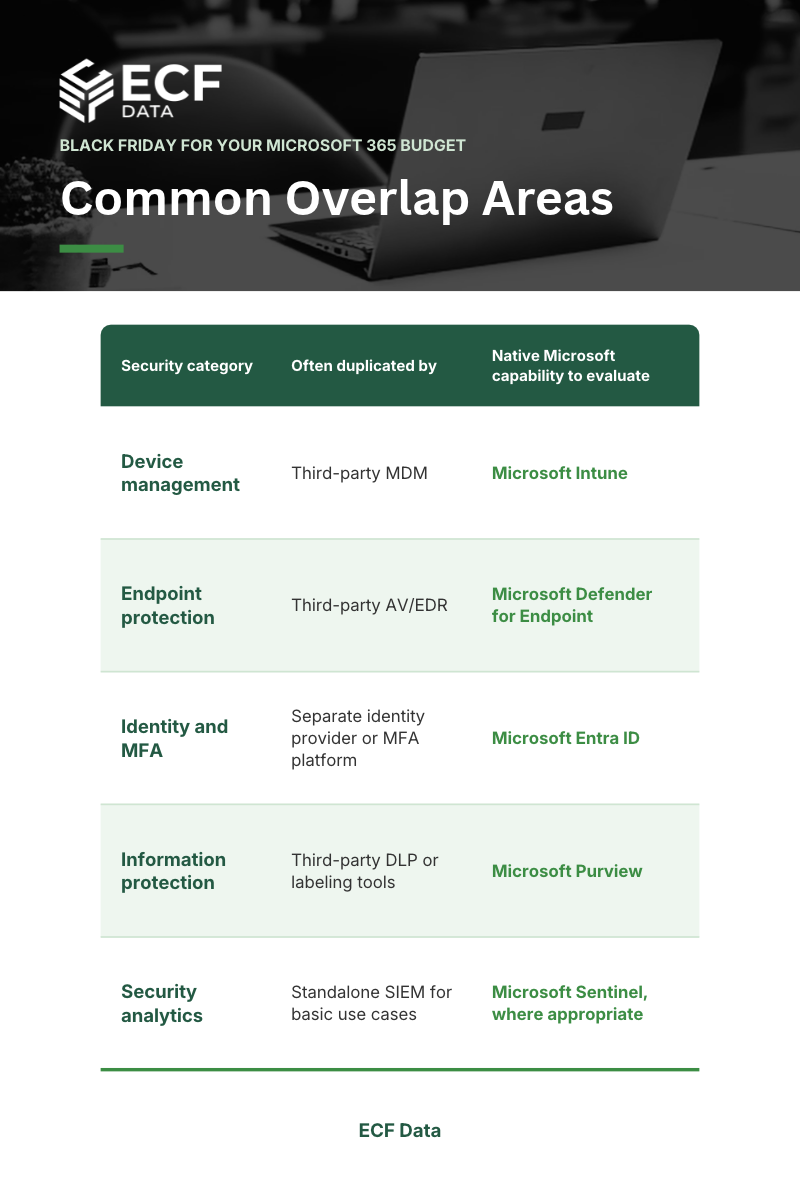
Many organizations are not just over-licensed—they are paying twice for security. They buy Microsoft 365 E5, then continue paying for third-party tools that overlap native Microsoft capabilities.
This does not mean every third-party tool is unnecessary. It means every renewal should answer one question: What specific capability does this vendor provide that Microsoft E5 does not already cover, and can we prove it?
Unsure If Microsoft 365 E5 Delivers Real ROI for Your Enterprise?
Before committing your annual IT budget, evaluate whether E5’s security, compliance, and voice capabilities justify the upgrade for your workforce.
How to Run the Consolidation Review
- Inventory every security vendor and its annual cost, owner, and renewal date.
- Map each product to a native M365 feature. Be honest about functional gaps, not just feature checklists.
- Pilot the native tool on a limited device or user group for 60 to 90 days.
- Align retirement with contract end dates. Cancelling a tool mid-term rarely refunds anything, so timing is the savings lever.
- Measure the outcome: fewer agents per endpoint, fewer consoles for the SOC to watch, and lower license spend.
Consolidation is not always the right answer. Best-of-breed tools sometimes earn their place. The goal is to make that deliberate decision instead of an accident of procurement history.
The “Black Friday” Audit Checklist
Before your next annual Microsoft renewal, complete these five actions:
- Reconcile licenses to people: Match every assigned license to an active employee, contractor, or documented service account.
- Remove 90-day inactive accounts: Use Entra ID sign-in data, HR records, and mailbox activity to identify reclaim candidates.
- Eliminate unassigned reserves: Keep only licenses with a named owner, business purpose, and expiry date.
- Right-size E5 assignments: Identify users who do not use E5-only security, compliance, analytics, or voice capabilities and assess an E3 downgrade.
- Consolidate duplicate security tools: Compare third-party MDM, EDR/AV, identity, and MFA spend against Intune, Defender for Endpoint, and Entra ID capabilities.
Make Your Microsoft 365 Savings Real Before the Year Ends
Finding room in your Enterprise IT budget doesn’t require sacrificing security postures or deferring strategic initiatives. By conducting a structured Microsoft 365 license audit, IT and finance leaders can eliminate waste, streamline vendor management, and fund critical technical initiatives using existing budget allocations.
Schedule Your M365 License & Security Stack Review
Unsure how many ghost licenses exist inside your tenant? Our team of enterprise Microsoft architects and cloud security strategists can analyze your environment and provide a clear roadmap to optimize your licensing spend.
In a free 15-Minute M365 License & Security Stack Review, we will help you:
- Identify dormant accounts and unassigned license reserves sitting in your tenant.
- Map your third-party security stack to spot redundant license spend.
- Outline an actionable plan to optimize your upcoming Microsoft renewal.